This guide helps you get started with your free trial. Learn about the dashboards, the basics of dashboard editing, and how to get support.
ContractorBI™ Trial: Help and Support
Welcome to ContractorBI


This guide helps you get started with your free trial. Learn about the dashboards, the basics of dashboard editing, and how to get support.

While your trial is active, you will have access to six Financial dashboards, the Won/Lost Analysis Performance dashboard, and the Trial Help dashboard. You can edit existing dashboards and create new ones. (See Editing & Creating Dashboards.)
Note that you will not have access to the 45 prebuilt dashboards that are included with a paid license of ContractorBI.
Important: Your trial uses sample data from real ContractorBI customers (names, dates, and amounts adjusted). If you would like to continue your trial with your data, please schedule a meeting with us. A setup fee of $2,500 will apply.
The trial lasts for 14 days from the time of trial sign-up. After the trial, or anytime during, you have the option to fully sign-up and schedule a kickoff meeting.
During the kickoff meeting, we will introduce you to the onboarding, training, and support processes. If you want to add additional subscriptions and users, you will have an opportunity to request them during the kickoff meeting.
The following dashboards are included in the trial. Everything is customizable — filters, charts, graphs, and grids can be tailored to your needs. Use the Getting Started and Editing videos to learn filters, drilldowns, navigation, and editing.
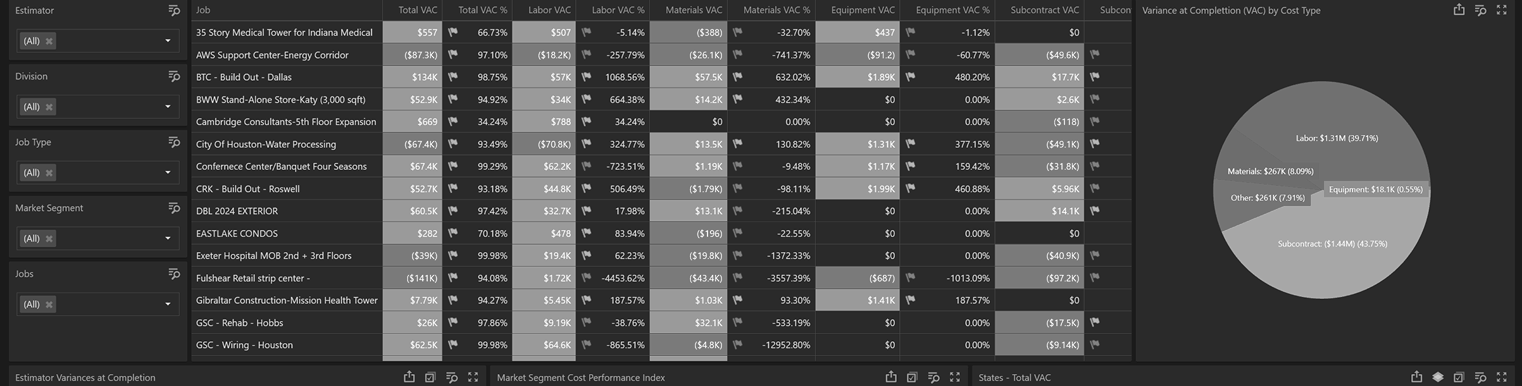

Analyze job cost performance for individual jobs across key characteristics. Primary focus: Variance at Completion (VAC) to spot over/under budget trends.
 |
Filters can be edited to meet your unique requirements. |
Job Performance Grid
The job performance grid analyzes total job cost variances and variances by cost types (Labor, Materials, Equipment, Subcontract and Other).
Individual calculations (columns) can be modified to fit your needs. You can also edit this grid to analyze other job characteristics such as Customers, Estimators, Project Managers, Job Types, Market Segments, etc.

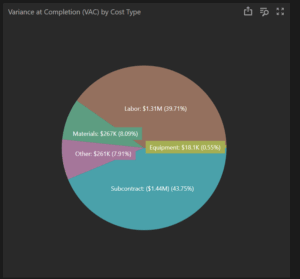
Cost Type Variances Pie Chart
Breaks down cost variances by Cost Type.
Estimator Variances Bar Chart
This bar chart depicts variances for each cost type by Estimator. Clicking, or drilling-down, on an Estimator filters the entire dashboard to show job cost performance for a specific Estimator.

Market Segment Cost Performance Index (CPI) Heat Map
This heat map depicts cost variances, total job estimate and cost performance indexes (CPI: 1 = on budget, < 1 is over budget, > 1 is below budget). The bigger the circle, the higher the CPI for a specific Market Segment.

Cost performance by Geography – Choropleth Maps of the US
This map indicates job cost performance (VAC $, VAC %, CPI) across different regions and geographies. The maps can be changed to reflect multiple countries, or narrow the focus to counties, zip codes, etc.
You may change the view to show VAC $, VAC % or CPI.
Clicking on a state filters the entire dashboard to analyze performance for the selected state.


The Individual Job Performance Grid and Performance Summary analyzes the job cost performance for each cost code and cost type for a specific job. Indirect overhead can be added to the Labor Costs to ensure indirect costs are considered in the analysis. Additionally, job percent complete can be applied to the job metrics (if the job is complete the percent complete will always be 100% and if the job has not started, the percent complete will always be 0).

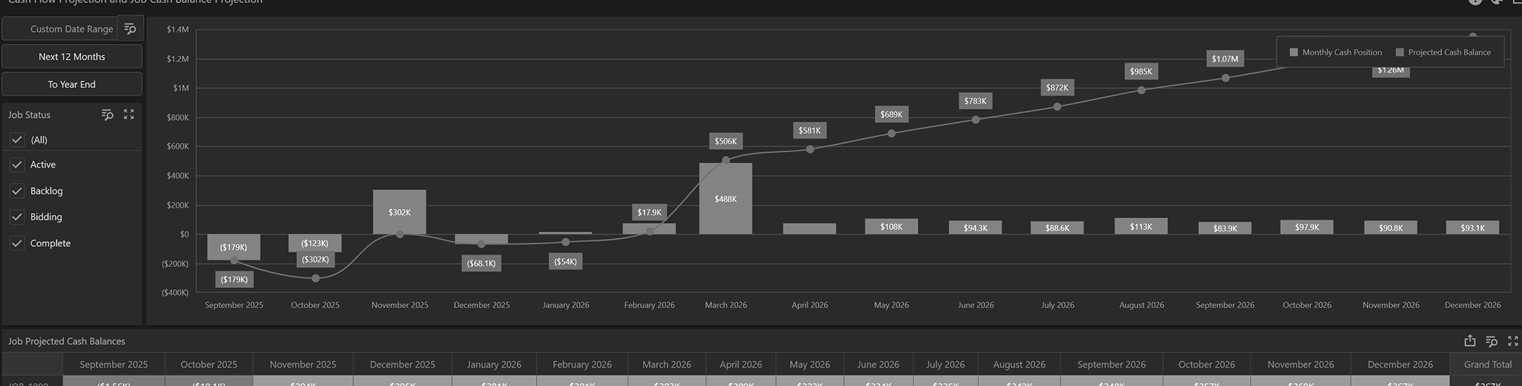
The Cash Flow Projection dashboard projects the realistic cash position for individual jobs, and the summary of all jobs, for a given time period.
To ensure the most realistic picture of job cashflow, data from a connected accounting application is used to analyze all outstanding job commitments and expected receivables. Payment history and AI analysis are used to determine the realistic deposit dates for your receivables.
Filtering job status to show only jobs in the bidding process will provide a picture of cash requirements to perform jobs that have not started.


The Revenue and Profit Insights dashboard indicates where company revenue and profits occur across all job characteristics such as job type, estimator, geography, market segment, private/public, and more.
Clicking on graphs, heat maps, bar charts, maps, and pie charts allow drill down capabilities for the entire dashboards.
Visualizations are easily modified to change job characteristics to be analyzed (i.e. change revenue/profits by job type to revenue and profits by customer)


Financial managers are familiar with WIP reports. ContractorBI uses job cost performance data and calculations to determine Earned Revenue and Billed To Date resulting in accurate, real-time Over/Under Billing calculation.
Our WIP report shows WIP for individual jobs and summarizes all jobs listed.
Jobs that are overbilled will be red; jobs underbilled will be green.

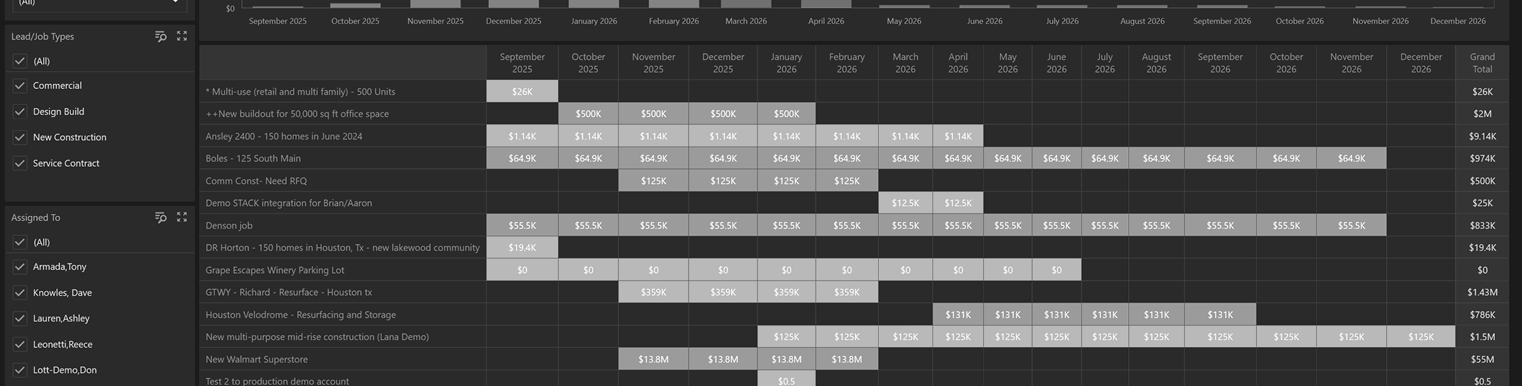
The Revenue Forecast Detail dashboard is a projection of expected revenue for both active jobs and jobs in the bidding phase providing a complete picture of your expected revenue.
Revenue in orange reflects jobs in the bidding phase and the revenue is weighted by probability (in TopBuilder CRM).
Active jobs in green are updated from the connected job cost accounting system to ensure up to date start/end dates, current job revenue, and job status.
Various forecast models are supported (straight-line, bell curve, s-curve.) The trial employs a straight-line forecast model.


The Won/Lost Analysis dashboard analyzes sales, revenue, sales conversion rates and revenue conversion rates across typical job characteristics for a given timeframe.
Clicking on any area of the Won/Lost Analysis dashboard drills down on, or filters, the item selected.

Assigned To scorecard
This is the salesperson assigned to the job in TopBuilder CRM. The scorecard can be changed to show sales, revenue, sales conversion, and revenue conversion rates (refer to the red arrow). If you click on an Assigned To, you will drill-down and the entire dashboard will show metrics for the selected Assigned To.

Estimator Gauges: Visualizes Won/Lost ratios by Estimator.

Job Type Bar Chart: Won/Lost sales and revenue ratios by Job Type.

Market Segment Scorecard: Works like Assigned To.
Sales and Revenue Conversion Pie Charts

Won/Lost by Division bar chart: Visualizes sales and revenue conversion rates.